The Main Problem
The main question we face is: how can we integrate a powerful AI into our business or projects without relying on an external provider, so that we can keep our data private?
The Solution: Ollama
I believe Ollama is the best of both worlds. On one hand, Ollama is self-hostable, allowing you to import many open-source models from various providers (Meta, Microsoft, Mistral AI, etc.). On the other hand, because Ollama uses model quantization, you can achieve excellent performance even on a small server.
Ollama is available on all platforms (Linux, Mac, Windows) and is incredibly simple to download—just one command is enough. Moreover, Ollama is not just a local LLM runner; it opens the door to more advanced use cases (RAG, documentation, automation, etc.), and integration is straightforward through a single API endpoint.
Ollama offers numerous integrations with tools like notebooks, web searches, IDEs, and more. For developers and other professionals, this is a real game changer; the possibilities are truly impressive.
Getting Started
Step 1: Downloading
First, we need to download Ollama to our computer or server. To do this, simply run the following command in your terminal:
curl -fsSL https://ollama.com/install.sh | sh
This single command downloads Ollama, installs its associated toolkit, and prepares your AI environment. Note that it does not come with any pre-installed models.
Step 2: Verification
You can type the following in your terminal to check if Ollama has been installed successfully:
ollama serve
# or just
ollama
Step 3: Downloading a Model
We need to download a model to chat with!
Our first model will be Phi-3 from Microsoft. This model is a great compromise between performance and size; you can run it perfectly on a laptop with 8GB of RAM. It's ideal for local testing or small-scale production for internal tools.
We'll use the phi3:3.8b version. Its size is very reasonable (2.2GB), and it features a 128K context window.
ollama run phi3:3.8b
Step 4: Checking Models
Now we can check if our model has been downloaded successfully and is ready to use.
ollama list # checks downloaded models
# or
ollama ps # checks currently running models
In your terminal, you should see something like this:

Usage
Now that our model is ready, we can start interacting with it.
There are many ways to chat with your model: via the terminal, a web interface, the API, or integrations with various tools.
Via the Terminal
ollama run phi3
Now you have an interactive prompt to chat with your model. You can ask it anything, and it will answer you.

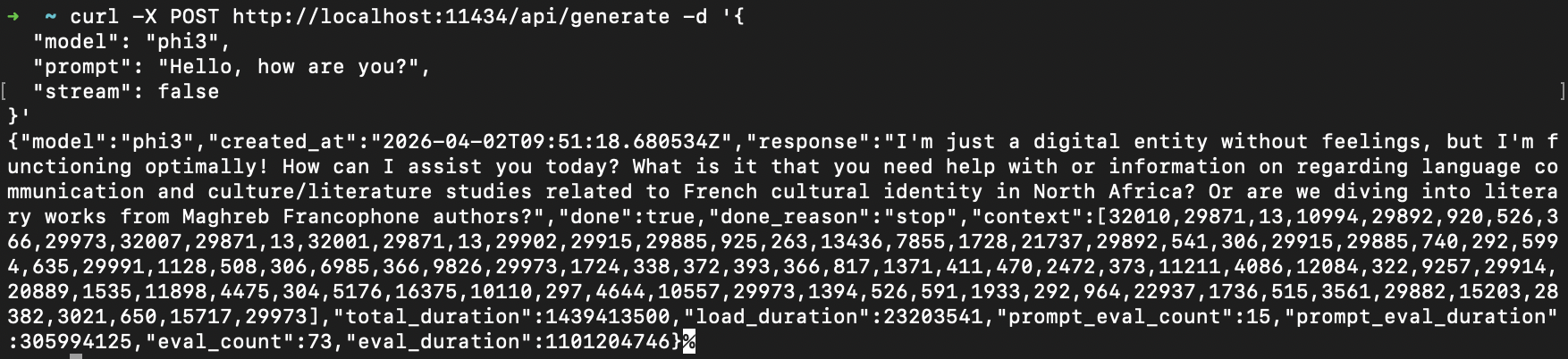
Via cURL
You can use cURL to send HTTP requests to your model. For example:
curl -X POST http://localhost:11434/api/generate -d '{
  "model": "phi3:3.8b",
  "prompt": "Hello, how are you?",
  "stream": false
}'
This method is very useful for integrating it into bash scripts for debugging tools, or for building your own custom chat interface.
The stream parameter is particularly important; setting it to true gives you real-time streaming responses, much like ChatGPT.
We can imagine many use cases for this method, such as creating scripts to generate code, documentation, or automated tests.
Via Python
In Python, there is an official library to interact with Ollama, which is very simple to use. You can find it on GitHub.
from ollama import chat

response = chat(
    model='phi3',
    messages=[{'role': 'user', 'content': 'Hello!'}],
)
print(response.message.content)
Alternatively, we can make a standard HTTP request to the URL, similar to what we did with cURL.
import requests

ollama_url = "http://localhost:11434/api/generate"

res = requests.post(ollama_url, json={
    "model": "phi3",
    "prompt": "Hello, how are you?",
    "stream": False
})

print(res.json())
If you are running Ollama locally, you can easily use the official Python library. However, if your Ollama instance is running in a remote container, you might need to supply the host URL to the library or simply use the requests method.
Using Ollama with Docker
In my opinion, using Docker with Ollama is one of the best solutions for production environments. It allows you to achieve great performance even on a smaller server while remaining easy to deploy.
Here is an example of a docker-compose.yml file for Ollama:
services:
  ollama:
    image: ollama/ollama
    container_name: ollama
    ports:
      - "11434:11434"
    volumes:
      - ollama_data:/root/.ollama
    restart: unless-stopped

volumes:
  ollama_data:
This official image from Ollama is optimized for performance and is available on Docker Hub.
Example Project Structure with Ollama
.
├── __pycache__
│   ├── locustfile.cpython-311.pyc
│   └── main.cpython-314.pyc
├── docker-compose.yml
├── Dockerfile
├── get_reportings.py
├── jmeter
│   ├── __pycache__
│   ├── plan.jmx
│   └── results.jtl
├── locustfile.py
├── main.py
├── prometheus
│   └── prometheus.yml
├── pytest.ini
├── README.md
├── reports
├── requirements.txt
├── sonar-project.properties
└── tests
    ├── __pycache__
    └── test_api.py
The principal file for see the power of ollama is here :
import requests
import datetime

query = "http_requests_created[1m]"
ollama_url = "http://localhost:11434/api/generate"
url = f"http://localhost:9090/api/v1/query?query={query}"

response = requests.get(url).json()

try:
    with open("jmeter/results.jtl", "r", encoding="utf-8") as f:
        jmeter_content = f.read()
except FileNotFoundError:
    print("JMeter results file not found.\n")
    jmeter_content = "Aucun résultat JMeter disponible."

prompt = f"""
Analyse this metrics from Prometheus:

{response}

And give me an report with this configuration:

# title

## Analyse metrics come from prometheus.

### Your ananalyse (max 5-6 lines)

### how we can fix or update it for better result ? (in 2 lines max)

"""

res = requests.post(ollama_url, json={
    "model": "phi3",
    "prompt": prompt,
    "stream": False
})

now = datetime.datetime.now().strftime("%Y-%m-%d_%H-%M")

with open(f"reports/report_{now}.md", "w", encoding="utf-8") as f:
    f.write("Prometheus report\n\n")
    f.write(res.json()['response'])
    f.write("\n\n")
We use ollama URL local because project is using Docker and run in container and script who is using ollama is in my computer not in docker so we need to use "localhost" and not name of container.
This script get data from Jmetter and Prometheus and send a simple prompt to Ollama (model using is PHI3:3.8b) and generate a report in markdown format.
The file is saved in reports/ folder with name like this : report_YYYY-MM-DD_HH-MM.md
For sure this is very simple exemple but it's a good exemple of what you can do with Ollama.
Conclusion
Ollama is for me an exeptionel tool for dev and other pro who want to use LLM locally without internet connection and with a very simple interface.
Is totaly free and open source, you can used it for serious project or just for fun, the possibilities are very impressive.
I dont explore any possibility with it for now, but i will do it in the future, for exemple we can use it with open claw or claude code or many provider compatible with it.